

Panel roles and permissions
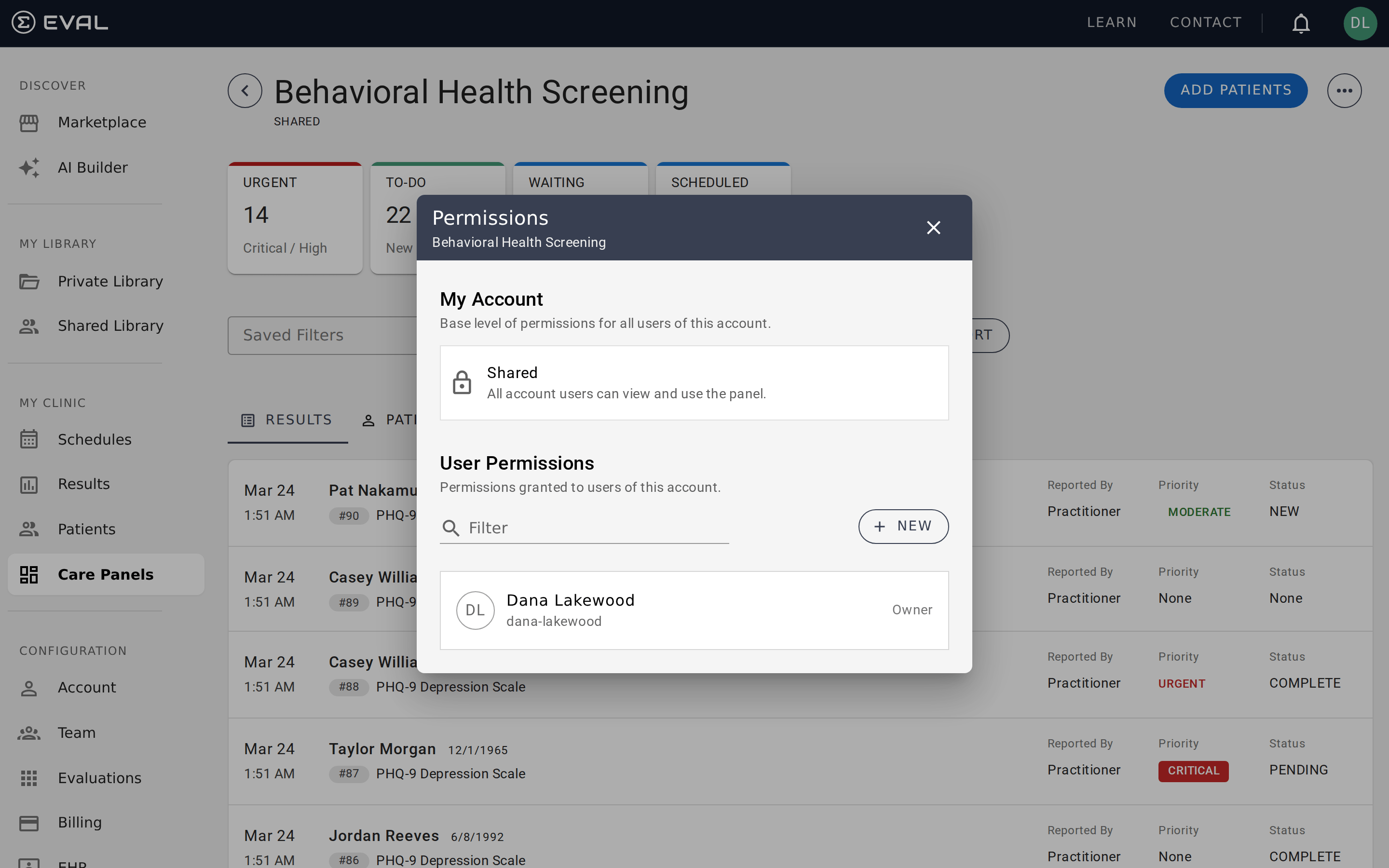
Each user on a panel has one of two roles that determine what they can do within that panel. The person who creates a panel is automatically an Owner.
Panel roles
Section titled “Panel roles”- Owner — Full control over the panel’s configuration and data.
- User — View-only access to the panel’s results, patients, and schedules.
What each role can do
Section titled “What each role can do”| Action | Owner | User |
|---|---|---|
| View results, patients, and schedules | ✓ | ✓ |
| Filter and search within the panel | ✓ | ✓ |
| Save and manage personal filters | ✓ | ✓ |
| Edit panel name and visibility | ✓ | — |
| Configure assignments | ✓ | — |
| Configure notifications | ✓ | — |
| Set up public intakes | ✓ | — |
| Manage default evaluations | ✓ | — |
| Add and remove users (Permissions) | ✓ | — |
How roles interact with visibility
Section titled “How roles interact with visibility”On Shared panels, everyone in the organization has User-level access by default. You can promote specific people to Owner if they need to manage the panel.
On Private panels, no one has access until you invite them and assign a role.
Inviting users
Section titled “Inviting users”To add someone to a panel, open the overflow menu and select Permissions. Search for the user by name, choose their role (Owner or User), and save. They’ll immediately see the panel in their panel list.
On Private panels, this is the only way someone gets access — you must explicitly invite each person. On Shared panels, inviting someone as an Owner grants them elevated permissions beyond the default User-level access that all organization members already have.
Removing access
Section titled “Removing access”To remove someone’s access, open Permissions, find their name, and remove them. The effect depends on the panel’s visibility:
- Private panel — Removing a user completely revokes their access. They can no longer see the panel in their panel list.
- Shared panel — Removing a user revokes any elevated role (Owner) you’d assigned, but they retain the default User-level access that all organization members have on Shared panels. To fully restrict someone from a Shared panel, you’d need to switch the panel to Private.
Transferring ownership
Section titled “Transferring ownership”You cannot remove yourself from a panel if you’re the only Owner. To step down, first promote another user to Owner through the Permissions dialog, then have them remove your elevated role if needed.