

Actions and sharing
The Actions menu is your central hub for everything you can do with an evaluation beyond answering questions. Available from the header of any evaluation, it provides quick access to sharing, management, and navigation options. What you see depends on your role and the evaluation’s visibility.
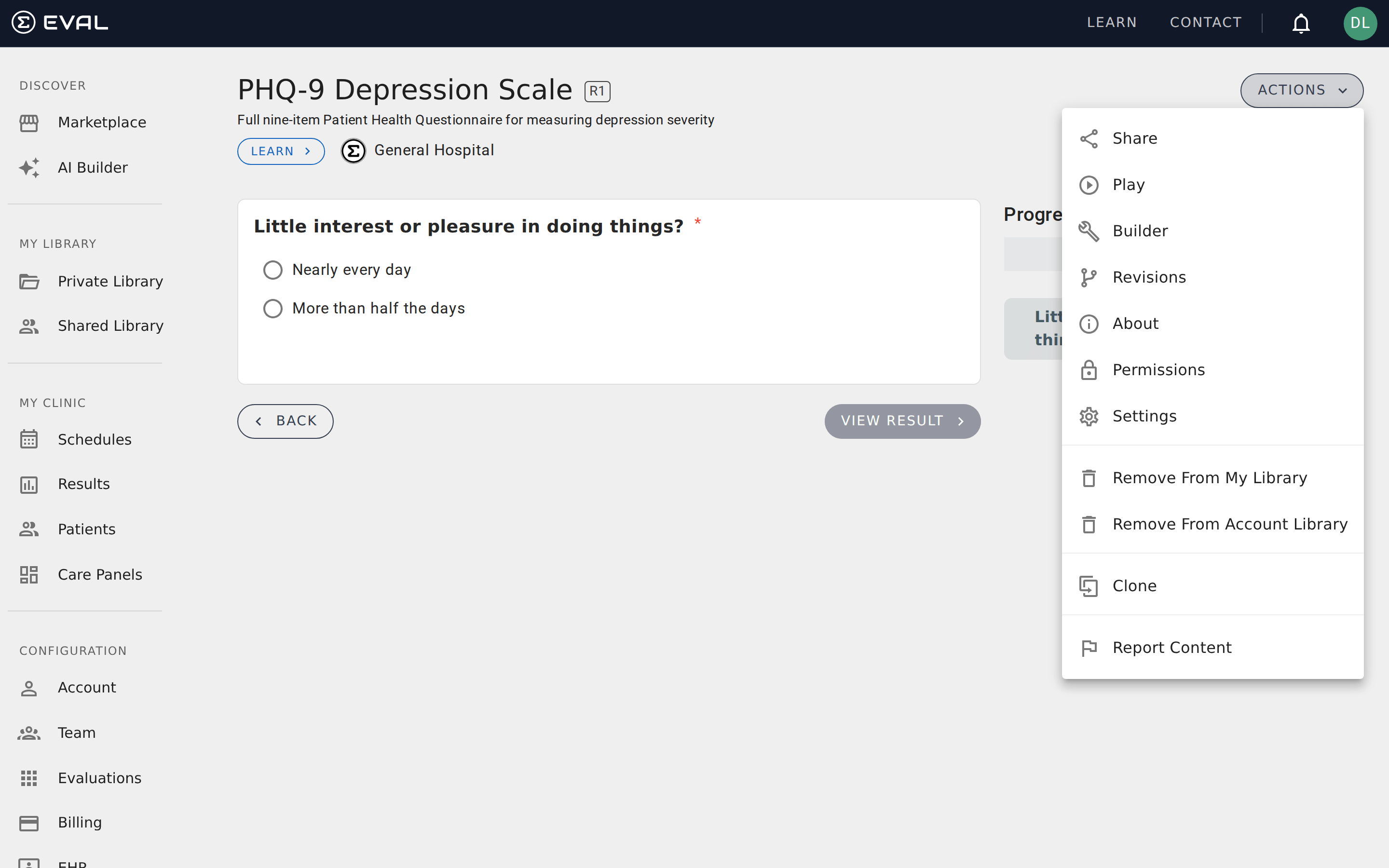
Actions menu
Section titled “Actions menu”The dropdown menu contains up to ten items, organized by function:
Opens a dialog with multiple ways to distribute your evaluation. The Share dialog has four panels, each offering a different sharing method:
- Link — A direct URL to the evaluation that you can copy and send via email, messaging, or any other channel. This is the simplest way to share.
- QR Code — A scannable code that patients can use to open the evaluation on their phone. Useful for printed materials, waiting room signs, or intake packets.
- Button — HTML code for embedding a branded “Take Evaluation” button on your website. Copy and paste it into your site’s HTML.
- Website Embed — Full iframe code that embeds the interactive evaluation directly on your web page. Choose between a Light theme (gray background) or Transparent theme (blends with your page). The generated code includes auto-resize JavaScript that adjusts the iframe height as users navigate through the evaluation.
Opens the evaluation in the Player, starting from the beginning. If you’re already viewing the Player, this reloads the evaluation at the first section.
Builder
Section titled “Builder”Opens the evaluation in the Builder, where you can view or edit the evaluation’s content, settings, and configuration. If you have edit access and want to make changes, click Edit in the Builder’s header to create or continue a draft.
Revisions
Section titled “Revisions”Navigates to the revision history page, showing all published and draft revisions with their status and management options.
Opens the About page with the evaluation’s summary, literature references, attribution, and tags.
Permissions
Section titled “Permissions”Opens the Permissions dialog where you can manage visibility settings and user access. This option is only available if you have Owner-level access to the evaluation.
Settings
Section titled “Settings”Navigates to the Account Administration page for evaluation-level settings. This is an administrative action, typically used by account managers who need to configure organization-wide evaluation policies.
Library actions
Section titled “Library actions”Depending on whether the evaluation is already in your library, you’ll see either Add to My Library or Remove From My Library. Adding an evaluation to your library creates a personal reference — it doesn’t copy the evaluation, just makes it easy to find from your Library page.
Opens a dialog where you create a new, independent evaluation starting from the current evaluation’s content. Enter a name and URL slug for the clone. This is the same cloning action available from the revisions page — it creates a separate evaluation with its own revision history and permissions.
Report content
Section titled “Report content”If you find an evaluation with problematic content, the Report option lets you flag it for review. The dialog presents seven categories for your report:
- Spam or misleading content
- Inappropriate or offensive material
- Copyright or intellectual property concerns
- Inaccurate medical information
- Privacy violations
- Harmful content
- Other
Select a category, add an optional description, and submit. The EVAL team reviews reports and takes appropriate action.
Downloading results from the Player
Section titled “Downloading results from the Player”While the Actions menu covers management tasks, downloading results is available directly from the Player after you’ve completed an evaluation. Once all required questions are answered and results are calculated, a Download button appears with two options:
- PDF — A formatted document including the evaluation title, your responses, and calculated results
- Copy Text — A plain-text summary copied to your clipboard
These options are designed for capturing results at the point of care — saving a copy for patient records, sharing with a colleague, or pasting into clinical notes.