

eClinicalWorks Bulk Export
eClinicalWorks (eCW) supports the FHIR Bulk Data Export standard, which lets EVAL import an entire patient population in a single batch operation instead of one chart at a time. This is the fastest way to bring your existing eCW patients into EVAL during initial setup.
Bulk export in eCW has two sides, and both must be in place before an import will return any patients:
- In eClinicalWorks — you create a patient group (the set of patients to export) and enable that group for a Bulk API backend app.
- In EVAL — you create a Background Service connection with the Bulk API capability, point it at your group, and trigger the import.
This guide walks through both sides in order. It expands on the official eClinicalWorks reference with the EVAL-specific steps; for the eCW developer documentation, see eClinicalWorks: Patient Groups.
How eClinicalWorks bulk export works
Section titled “How eClinicalWorks bulk export works”A few eCW concepts shape how the setup works:
- Patient group — a saved set of patients defined by a registry query. eCW assigns each group a numeric group ID when you save it. EVAL exports patients by group ID, so every bulk import targets one or more groups.
- Backend / Bulk API app — a system-level FHIR app that authenticates without a user (the OAuth2 client-credentials flow) and can read data for an entire group. The EVAL Health app is registered here as Backend - Bulk API.
- Group-level
$export— the FHIR operation EVAL calls to start the export. eCW gathers the group’s data, prepares it as NDJSON files, and EVAL downloads and maps them into patient records.
Because a group must be explicitly enabled for a backend app, creating the group is not enough on its own — you also have to attach it to the EVAL Health Bulk API app.
Part 1 — Set up in eClinicalWorks
Section titled “Part 1 — Set up in eClinicalWorks”You’ll do this work inside eClinicalWorks, typically with help from your eCW administrator. It assumes the EVAL Health Backend - Bulk API app has already been registered and activated in your eCW environment (see Register the EVAL Health app below if it hasn’t).
Create a patient group
Section titled “Create a patient group”A patient group starts as a registry query and is then saved as a reusable group.
Open the registry
From the eCW Main Menu, go to Registry → Registry.
Build your query
Use the demographics and clinical conditions tabs to define which patients belong in the group. For an initial full import, keep the query broad enough to capture every patient you want in EVAL. For a targeted import (for example, a single program or condition), narrow it with the appropriate criteria.
Save the query as a group
Click Save Queries. In the Save Registry Query Report window, enter a name in the Report Criteria field, then check Save the query as a group to use with the backend/bulk access apps. Click OK.
Note the group ID
eClinicalWorks assigns the saved group an auto-generated group ID. Record this ID — you’ll enter it in EVAL when you configure the import.
Enable the group for the Bulk API app
Section titled “Enable the group for the Bulk API app”A new group is not visible to any backend app until you enable it.
Open the backend apps admin
Go to Admin → Product Activation → FHIR APIs → Bulk/Backend Apps.
Manage the EVAL Health app’s groups
Find the EVAL Health Backend - Bulk API app tile and click Manage Groups.
Enable your group
Select your group in the Available Groups list and move it to the Enabled Groups list using the right caret (›). Save your changes.
Once the group appears under Enabled Groups, the EVAL Health Bulk API app can export it.
Register the EVAL Health app
Section titled “Register the EVAL Health app”If the Backend - Bulk API app tile doesn’t exist yet in your eCW environment, register it before enabling groups. EVAL provides the identifiers you need:
- In EVAL, start creating the eClinicalWorks connection (see Part 2). After discovery, the configuration screen shows an Installation Instructions panel.
- Copy the App Name and the EHR Activation Code from that panel.
- Give those values to your eClinicalWorks administrator, who uses them to register and activate the EVAL Health app in the eCW FHIR app marketplace as a Backend - Bulk API app.
Part 2 — Configure in EVAL
Section titled “Part 2 — Configure in EVAL”With the group created and enabled in eCW, configure the matching connection in EVAL.
Create the Bulk API connection
Section titled “Create the Bulk API connection”Navigate to EHR in the CONFIGURATION section of the sidebar, click New Connection, and choose eClinicalWorks. In the discovery wizard:
- Use the directory lookup or enter your Service Base URL from your eCW technical contact.
- For Connection Usage, select Background Service.
- Under Background Service Capability, select Bulk API.
- Click Search, confirm the discovery succeeds, give the connection a display name, and create it.
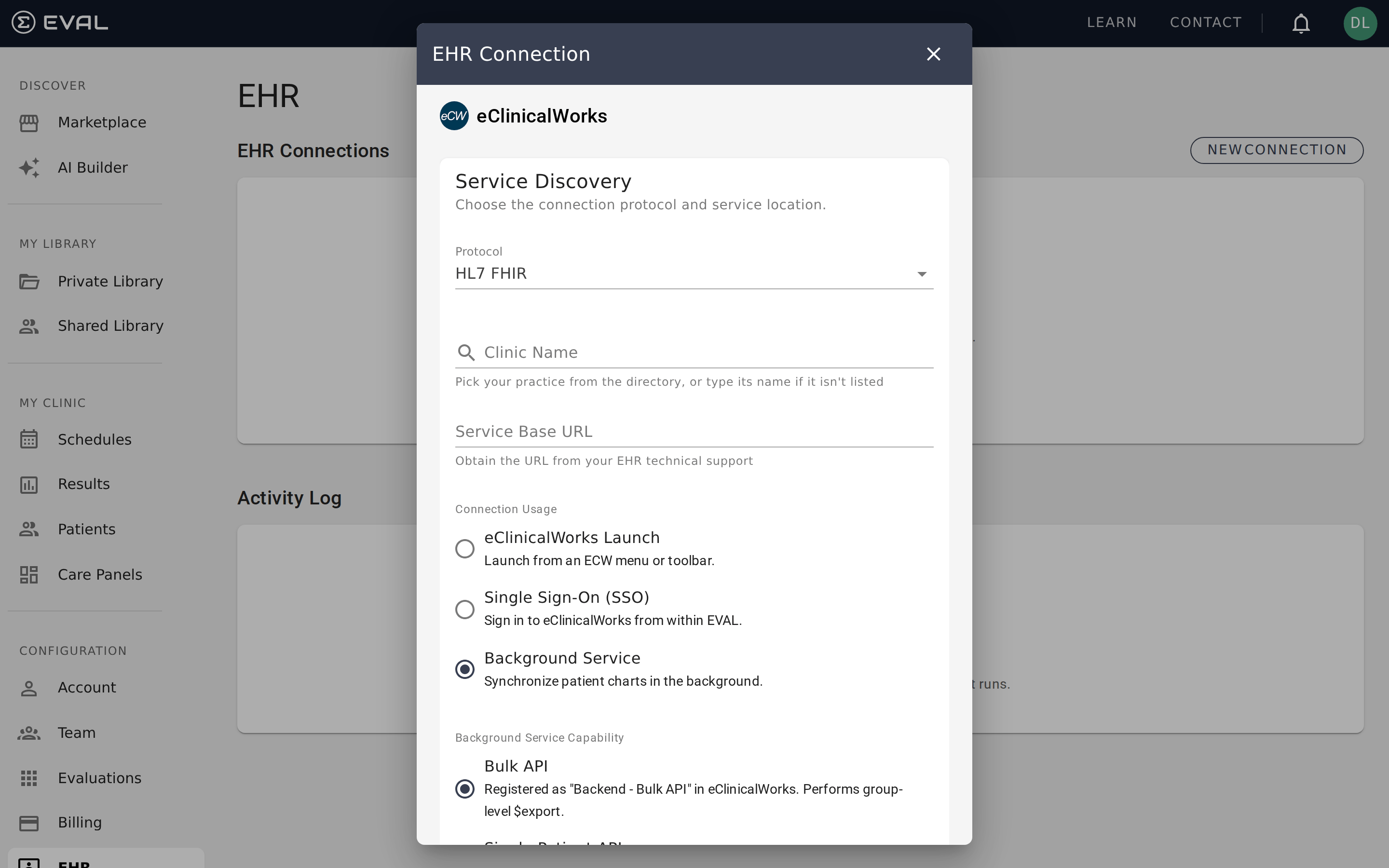
For the full discovery walkthrough, see Creating connections.
Configure bulk import
Section titled “Configure bulk import”Open the new connection from the EHR Connections list to reach its detail page, then find the Bulk Import card.
Open the edit dialog
Click Edit on the Bulk Import card.
Enable bulk import
Turn on Bulk Import Enabled.
Add your group
Enter the Group ID from eClinicalWorks. You can type it into the Group IDs field and press Enter, or click Load from EHR to have EVAL list the groups your connection can see and select yours from the checkboxes. Loading from the EHR requires the
system/Group.readscope on the app; if eCW returns no groups, enter the ID manually instead.Set a scheduled refresh (optional)
Turn on Scheduled Refresh and choose a Refresh Window Start and Refresh Window End. The hours are interpreted in UTC; a window such as 2:00 AM–8:00 AM UTC runs the import automatically each day during off-hours.
Save
Click Save to store the configuration.
Run the initial import
Section titled “Run the initial import”Back on the Bulk Import card, click Trigger Import to start the first import immediately, then confirm in the dialog. EVAL issues a group-level $export to eClinicalWorks, polls until the export is ready, downloads the NDJSON data, and maps it into patient records.
Watch the connection’s Activity Log for a Bulk Import entry. A green SUCCESS badge with a resource count confirms the import completed; the entry also shows how many FHIR resources were fetched and how long it took.
Verifying and troubleshooting
Section titled “Verifying and troubleshooting”If an import doesn’t behave as expected, the cause is usually on the eClinicalWorks side — the group, the app registration, or the scope.
- Bulk import returns zero patients — confirm the group is listed under Enabled Groups for the EVAL Health Bulk API app in eCW, and that the group’s query actually matches patients. Re-run the saved report in Registry → Saved Reports to refresh membership.
- EVAL can’t load groups from the EHR — the connection may lack the
system/Group.readscope, or your eCW environment may not expose group listing to backend apps. Enter the Group ID manually instead; the import still works with a manually entered ID. - The Trigger Import button is disabled — bulk import must be enabled first. Open Edit, turn on Bulk Import Enabled, and save.
- Repeated FAILURE entries in the activity log — verify the Service Base URL and that the Backend - Bulk API app is still activated in eCW. See EHR connection issues for broader troubleshooting.
Reference
Section titled “Reference”- eClinicalWorks: Patient Groups — the official eCW guide to creating groups and enabling them for backend/bulk apps.
- Creating connections — the full EHR connection discovery wizard, including eClinicalWorks-specific options.
- Managing connections — bulk import, patient sync, scheduled refresh, and the activity log.
- FHIR and SMART on FHIR — the standards behind EVAL’s EHR integrations.