

Builder errors
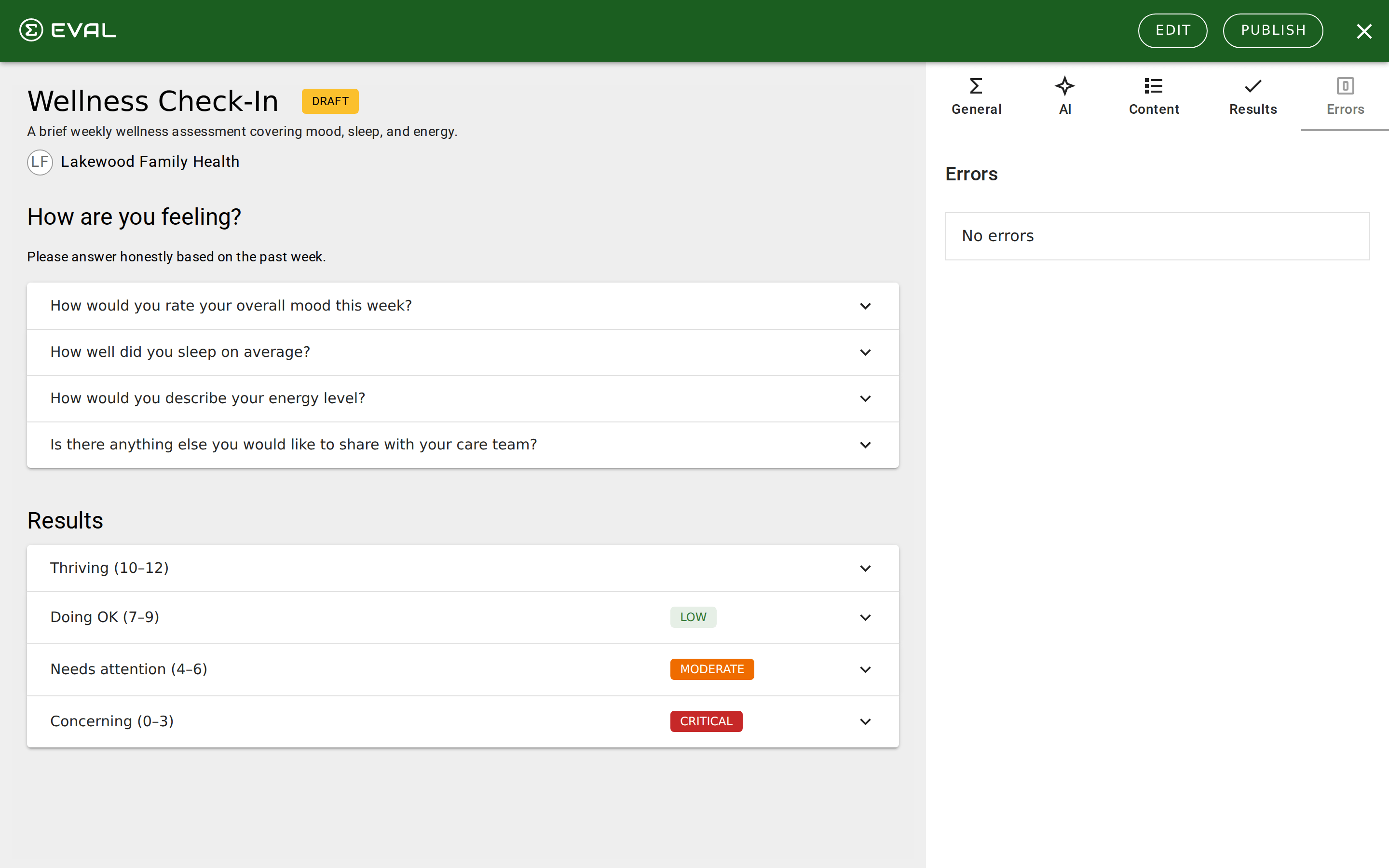
The Builder’s Errors tab is your evaluation’s quality gate. It validates your entire evaluation in real time and flags anything that would prevent it from working correctly when published. You must resolve all errors before you can publish a new revision.
This page covers every error type you may encounter, organized by category. For a general overview of how the Errors tab works, see Error resolution in the Builder section.
How to use this reference
Section titled “How to use this reference”When you see an error in the Errors tab, find it by category below. Each entry explains what the error means, why it occurs, and how to fix it. Errors include a View button that jumps directly to the element causing the problem — use it to navigate to the exact section, question, or result that needs attention.
Content errors
Section titled “Content errors”These errors mean a structural element is incomplete or empty.
Section is missing questions
A Questions-variant section contains no questions. Every section designated for question input must have at least one question. Either add questions to the section or delete it if it’s no longer needed. If you intended this section to display informational content instead of questions, change its variant to Information.
Section is missing content
An Information-variant section has no description, media, or topics. This section exists but has nothing to display. Add descriptive text, attach media, or add topics — or remove the section if it’s not needed.
Section is missing an evaluation
An EVAL App section doesn’t specify which evaluation to embed. This section type is designed to embed another evaluation within yours. Select the evaluation to embed, or change the section variant if embedding isn’t what you intended.
Question is missing a choice
A One Choice or Multiple Choices question has no answer options defined. Add at least one choice with a title and value. Most clinical instruments need 2–5 choices per question.
Choice is missing a title
A choice option exists but has no display text. The patient won’t see anything to select. Enter a descriptive title for each choice — this is the text the patient reads when answering the question.
Required field errors
Section titled “Required field errors”These errors mean a required field was left blank on an element’s configuration.
Question is missing required fields
A question is missing its Title (the question text patients see) or its Input Variant (the question type — number, one choice, multiple choices, text, date/time, or signature). Both fields are required for every question. Navigate to the question and fill in the missing fields.
Result is missing required fields
A result is missing its Title, Variant (formula or information), or Description. All three are required. Navigate to the result and complete the missing fields. For formula results, you’ll also need a valid formula expression.
Section is missing required fields
A section has no Title. Every section needs a title — it appears as the section heading when patients complete the evaluation. Navigate to the section and add a descriptive title.
App is missing results
Your evaluation has no results defined. Every evaluation needs at least one result — either a formula result that calculates a score or an information result that displays guidance. Switch to the Results tab and add a result.
Formula and rule errors
Section titled “Formula and rule errors”These errors involve the scoring logic and conditional visibility rules in your evaluation.
Result formula error
A formula expression has invalid syntax, references a question or keyword that doesn’t exist, or uses an unrecognized function. Open the formula in the Formula Editor and check for red error indicators. Common causes include typos in variable names, missing operators between terms, and parentheses that don’t match. See Formula Editor for the complete expression syntax.
Formula keyword title error
A keyword name (the variable name used to reference a question or result in formulas) contains invalid characters. Keywords must use only letters, numbers, and underscores — no spaces, hyphens, or special characters. Rename the keyword to something like PainScore or Total_Value.
Rule formula must equate to TRUE/FALSE
A visibility rule uses a formula-based condition that produces a number or text instead of a boolean (true/false) value. Visibility rules need conditions that evaluate to true or false so EVAL knows whether to show or hide the element. Wrap your expression in a comparison (e.g., Score > 10) or use an IF function that returns TRUE or FALSE.
A rule has a condition with an invalid target
A visibility rule references a section, question, choice, or result that no longer exists, or it references itself (creating a circular dependency). This typically happens after you delete or rename an element that a rule was pointing to. Open the rule, identify the broken condition, and either update it to reference the correct element or remove it.
Test errors
Section titled “Test errors”These errors appear when scenario tests don’t produce expected outcomes.
Result test failed
A scenario test expected a specific result to appear based on the test inputs, but the result wasn’t triggered. This usually means the result’s visibility rules or formula logic don’t match what you expected. Check the test’s question values against the result’s conditions. Adjust either the test expectations or the result’s logic. See Scenario testing.
Tips for efficient error resolution
Section titled “Tips for efficient error resolution”- Fix content and required field errors first. These are the simplest to resolve and sometimes clear formula and rule errors that depend on the missing elements.
- Use the View button. Every error has a View button that navigates directly to the problematic element. This saves you from hunting through complex evaluations.
- Watch the error count. The Errors tab badge shows the total count. As you fix errors, watch it decrease in real time — the builder validates continuously as you edit.
- Check after structural changes. Adding, removing, or reordering sections and questions can create new errors (especially broken rule references). Check the Errors tab after major structural edits.